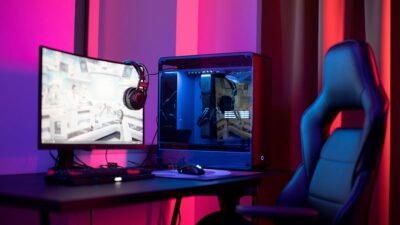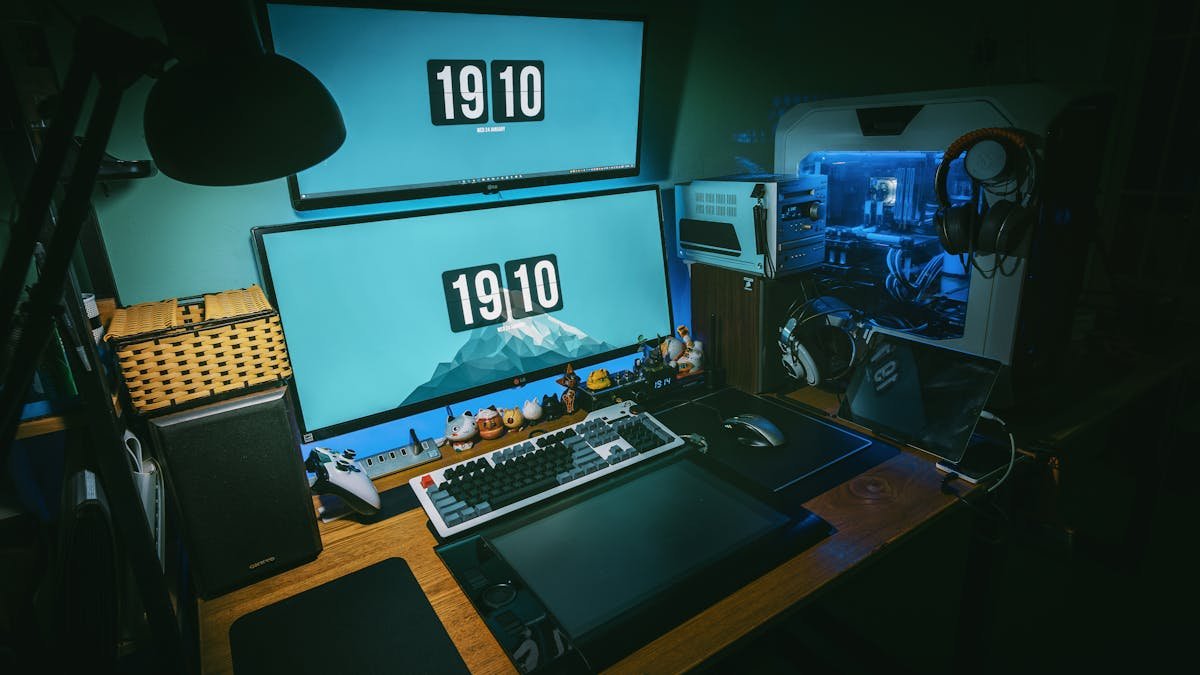
A dual monitor gaming setup is one of the best upgrades you can make to your PC experience. Game on one screen while watching a stream, browsing guides, or managing Discord on the other. Once you go dual monitors, you’ll wonder how you ever gamed on one. Here’s how to set up dual monitors for gaming from scratch, including the settings most guides forget to mention.
What You Need
Before connecting anything, make sure you have:
- A GPU with 2+ video outputs — Most modern GPUs (even budget ones) have at least 3 outputs (HDMI + DisplayPort). Check the back of your PC.
- Two monitors — They don’t need to be identical, but matching sizes and resolutions helps.
- The right cables — DisplayPort is preferred for gaming (supports higher refresh rates). HDMI 2.1 also works for 4K 120Hz+.
- Enough desk space — Two 27-inch monitors need about 48 inches of desk width minimum.
Important: Do NOT use USB-to-HDMI adapters for your gaming monitor. These adapters add significant input lag and cap refresh rates. Connect both monitors directly to your GPU using native video outputs.
Step 1: Connect Both Monitors
- Power off your PC
- Connect Monitor 1 (your gaming monitor) to your GPU via DisplayPort — this gives the best refresh rate support
- Connect Monitor 2 (your secondary monitor) to another GPU output — HDMI or a second DisplayPort
- Power on both monitors, then boot your PC
- Windows should detect both automatically
Troubleshooting: If a monitor isn’t detected, right-click the desktop > Display Settings > Detect. If it still doesn’t show, check that the cable is firmly seated and that you’re connected to your GPU (not the motherboard’s video output).
Step 2: Configure Windows Display Settings
- Right-click desktop > Display Settings
- You’ll see both monitors represented as numbered rectangles
- Click Identify to see which number appears on each physical monitor
- Drag the monitor rectangles to match their physical arrangement (left/right/above/below)
- Under “Multiple displays,” select Extend these displays
Key Settings:
Main Display: Click your gaming monitor and check “Make this my main display.” This ensures games launch on the correct screen.
Resolution: Set each monitor to its native resolution. If they’re different (e.g., 1440p gaming monitor + 1080p secondary), that’s fine — Windows handles mixed resolutions.
Refresh Rate: Click your gaming monitor > Advanced display > Set your monitor’s maximum refresh rate (144Hz, 165Hz, 240Hz, etc.). This is critical — Windows sometimes defaults to 60Hz even on high-refresh monitors.
Scaling: If your monitors are different sizes or resolutions, adjust scaling (100%, 125%, 150%) so that text and UI elements appear the same physical size on both screens.
Step 3: GPU Control Panel Settings
NVIDIA Users:
- Right-click desktop > NVIDIA Control Panel
- Go to Set up multiple displays — verify both are active
- Go to Change resolution — verify your gaming monitor is set to its max refresh rate
- Go to Adjust desktop size and position — set scaling to No scaling for your gaming monitor to avoid input lag
AMD Users:
- Open AMD Adrenalin Software
- Go to Display settings
- Verify both monitors are detected and set to correct resolutions/refresh rates
- Enable FreeSync on your gaming monitor if supported
Step 4: Gaming-Specific Configuration
Preventing Mouse Drift
The most annoying dual-monitor gaming issue: your mouse slides off the game screen onto the second monitor during intense gameplay. Solutions:
- Use Fullscreen mode (not Borderless Windowed) — Fullscreen locks the cursor to the game window
- If you must use Borderless Windowed (for faster alt-tabbing), use a tool like Cursor Lock or Dual Monitor Tools to confine the cursor during gameplay
- Some games have a built-in “confine cursor” option in settings
Borderless vs Fullscreen
| Mode | Pros | Cons |
|---|---|---|
| Fullscreen | Locked cursor, best FPS (+3-5%), lowest input lag | Alt-tabbing is slow, second monitor goes black in some games |
| Borderless Windowed | Instant alt-tab, second monitor always visible | Slightly lower FPS, cursor can escape, minimal extra input lag |
For competitive gaming, use Fullscreen. For casual gaming where you want easy access to your second screen, use Borderless Windowed.
Refresh Rate Warning
If your gaming monitor is 144Hz and your secondary is 60Hz, Windows can sometimes cap BOTH monitors to 60Hz when hardware-accelerated content (like video) plays on the secondary. This is a known Windows bug. Fixes:
- Use a different browser on the secondary (Firefox handles mixed refresh rates better than Chrome)
- Disable hardware acceleration in your browser: Chrome > Settings > System > Turn off “Use hardware acceleration when available”
- Keep video-heavy content on the secondary minimized while gaming
Step 5: Optimize Your Setup
What to Put on Your Secondary Monitor
- Discord — Voice chat and text channels always visible
- Game guides/wiki — No more alt-tabbing to check a walkthrough
- Streaming dashboard — OBS, chat, alerts if you stream
- System monitors — MSI Afterburner, Task Manager to watch temperatures and usage
- Music/Spotify — Control your playlist without leaving the game
- Browser — YouTube, Twitch, or Reddit between matches
Matching vs Mismatched Monitors
Matching monitors (same size, resolution, refresh rate) look cleaner and avoid scaling issues. But they’re not required.
Common combo: 27″ 1440p 144Hz (gaming) + 24″ 1080p 60Hz (secondary). This works perfectly fine. The gaming monitor handles the heavy lifting, and the secondary just needs to display Discord and browsers.
Don’t spend gaming monitor money on your secondary. A $100-150 1080p IPS panel is more than enough for your second screen. Save the budget for your primary display.
Monitor Arms/Stands
If both monitors are on their stock stands, your desk will be cluttered. A dual monitor arm ($30-60) clears up desk space, lets you angle both screens perfectly, and looks significantly cleaner. It’s worth the investment.
Performance Impact of Dual Monitors
Running two monitors has minimal FPS impact in most scenarios:
- Secondary monitor idle (Discord, browser): ~0-1% FPS loss. Essentially free.
- Secondary monitor playing video (YouTube, Twitch): ~1-3% FPS loss. Barely noticeable.
- Secondary monitor hardware-accelerated content: ~2-5% FPS loss. Disable hardware acceleration in the browser to reduce this.
If you’re running a budget gaming PC build with a lower-end GPU, the impact is still minimal — the secondary monitor’s 2D desktop rendering barely taxes your GPU.
For maximizing FPS on your gaming monitor, check our FPS optimization guide and input lag guide.
Troubleshooting Common Issues
Game launches on the wrong monitor: Set your gaming monitor as the Main Display in Windows Display Settings. Most games launch on the main display.
Second monitor flickers when gaming: Check that both monitors are using the correct cable type and that your GPU drivers are up to date. Mixed cable types (DP + HDMI) occasionally cause handshake issues.
Taskbar shows on both monitors: Right-click the taskbar > Taskbar settings > Turn off “Show taskbar on all displays” (or leave it on — personal preference).
Different DPI/scaling looks weird: Adjust per-monitor scaling in Display Settings. Windows 11 handles mixed DPI better than Windows 10.
Final Thoughts
A dual monitor setup costs as little as $100-150 for a decent secondary display and transforms your gaming experience. The key settings: use DisplayPort for your gaming monitor, set Extend mode in Windows, verify your refresh rate isn’t defaulting to 60Hz, and choose between Fullscreen and Borderless based on how much you need your second screen during gameplay. Once it’s set up, you’ll never go back to a single monitor.