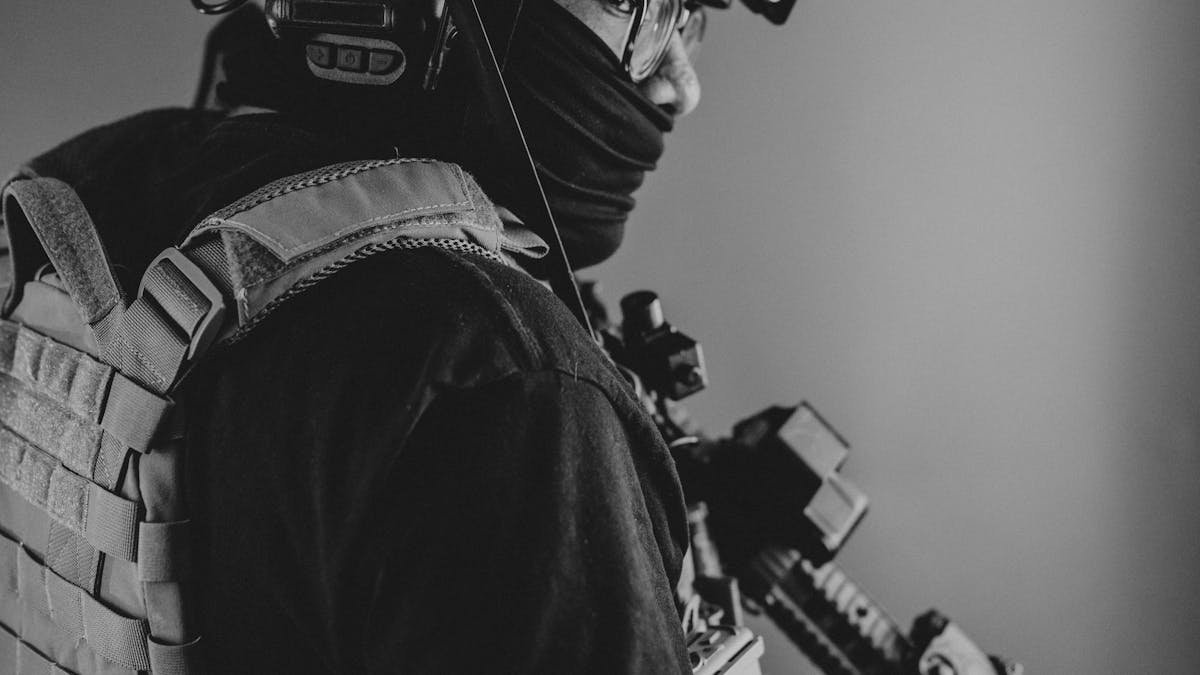
Battlefield 6 is back on the Steam charts and for good reason — DICE finally shipped a well-optimized Battlefield game. But 128-player matches with destruction physics still push hardware hard, especially at 1440p and 4K. Here are the best Battlefield 6 PC settings to maximize your FPS without turning the game into a blurry mess.
System Requirements
Battlefield 6 runs surprisingly well on mid-range hardware, but those massive multiplayer maps demand solid CPU performance.
Minimum (1080p, Low, 60 FPS)
- CPU: Intel Core i5-10400 / AMD Ryzen 5 3600
- RAM: 16 GB
- GPU: NVIDIA GTX 1660 Super / AMD RX 5600 XT
- Storage: 100 GB SSD (HDD will cause texture streaming issues)
Recommended (1440p, High, 60 FPS)
- CPU: Intel Core i7-12700K / AMD Ryzen 7 5800X
- RAM: 16 GB
- GPU: NVIDIA RTX 3070 / AMD RX 6800 XT
- Storage: 100 GB NVMe SSD
CPU matters more than you’d think in Battlefield 6. Those 128-player servers hammer your processor with physics calculations, destruction events, and network data. If you’re building a new rig, check our budget gaming PC guide for Battlefield-ready builds.
Best Display Settings
| Setting | Recommended | Notes |
|---|---|---|
| Resolution | Native (1080p/1440p/4K) | Use upscaling instead of lowering resolution |
| Display Mode | Fullscreen | True fullscreen gives ~3-5% better FPS than Borderless |
| V-Sync | Off | Non-negotiable for competitive BF6 |
| Frame Rate Limit | Match monitor refresh rate | Prevents GPU from overworking on frames you can’t see |
| NVIDIA Reflex | On + Boost | Massive input lag reduction in 128-player chaos |
| Future Frame Rendering | Off | Adds 1-2 frames of input delay. Turn it off |
| FOV | 90-100 | Higher FOV costs a few FPS but improves awareness significantly |
Future Frame Rendering is a trap. It looks like a free FPS boost, but it queues frames ahead of your input, adding noticeable delay. In Battlefield’s fast-paced gunfights, that delay gets you killed. Check our input lag reduction guide for more on this.
Best Upscaling Settings
Battlefield 6 has one of the best DLSS 4 implementations in any shooter. Here’s how to set it up.
NVIDIA RTX 40/50 Series (DLSS 4)
| Setting | Value |
|---|---|
| Upscaler | DLSS |
| Quality | Quality (1440p+) / Balanced (1080p) |
| Frame Generation | Off for competitive, On for casual |
| Multi Frame Generation | Off (RTX 50 only — adds too much latency) |
DLSS Quality at 1440p produces images that are sharper than native TAA. That’s not hyperbole — NVIDIA’s upscaling algorithm cleans up the temporal artifacts that BF6’s native TAA struggles with.
AMD RX 6000/7000 Series (FSR 3)
| Setting | Value |
|---|---|
| Upscaler | FSR 3 |
| Quality | Quality |
| Frame Generation | Off |
FSR 3 works well in BF6 but produces slightly more ghosting than DLSS during fast camera movements. Quality mode minimizes this.
Intel Arc (XeSS)
| Setting | Value |
|---|---|
| Upscaler | XeSS |
| Quality | Quality |
XeSS on Intel hardware uses dedicated XMX cores for upscaling, similar to DLSS. Performance is excellent on Arc B-series GPUs.
For a deep dive into how these technologies compare, see our DLSS vs FSR comparison.
Best Graphics Settings by GPU Tier
Low-End (GTX 1660 / RX 5600 XT)
| Setting | Value |
|---|---|
| Texture Quality | Medium |
| Texture Filtering | Medium |
| Lighting Quality | Low |
| Effects Quality | Low |
| Post-Process Quality | Low |
| Mesh Quality | Medium |
| Terrain Quality | Medium |
| Vegetation Quality | Low |
| Shadow Quality | Low |
| Shadow Filtering | PCF |
| Ambient Occlusion | GTAO Low |
| Anti-Aliasing | TAA Low |
| Ray Tracing | Off |
Target: 60+ FPS at 1080p. Shadow filtering is key here — use PCF instead of PCSS. PCSS looks better but costs significantly more GPU power. GTAO on Low provides enough depth without the massive hit of screen-space GI.
Mid-Range (RTX 3060/4060 / RX 6700 XT/7600)
| Setting | Value |
|---|---|
| Texture Quality | High |
| Texture Filtering | High |
| Lighting Quality | High |
| Effects Quality | Medium |
| Post-Process Quality | Medium |
| Mesh Quality | High |
| Terrain Quality | High |
| Vegetation Quality | Medium |
| Shadow Quality | Medium |
| Shadow Filtering | PCF |
| Ambient Occlusion | GTAO High |
| Anti-Aliasing | TAA High |
| Ray Tracing | Off |
Target: 100+ FPS at 1080p, 70+ FPS at 1440p with DLSS/FSR Quality. Bump Mesh and Terrain to High — these affect how the environment looks when destruction happens, and Battlefield without destruction detail isn’t really Battlefield.
High-End (RTX 4070+/5060 Ti+ / RX 7800 XT+)
| Setting | Value |
|---|---|
| Texture Quality | Ultra |
| Texture Filtering | Ultra |
| Lighting Quality | Ultra |
| Effects Quality | High |
| Post-Process Quality | High |
| Mesh Quality | Ultra |
| Terrain Quality | Ultra |
| Vegetation Quality | High |
| Shadow Quality | High |
| Shadow Filtering | PCSS |
| Ambient Occlusion | GTAO High |
| Anti-Aliasing | TAA High |
| Ray Traced Ambient Occlusion | Off |
Target: 120+ FPS at 1440p with DLSS Quality. Even on high-end GPUs, keep Ray Traced AO off. It’s the single most expensive toggle in BF6, eating 30-35% of your FPS for a subtle lighting improvement most players can’t notice during gameplay.
128-Player Match Optimization
Large-scale Conquest and Breakthrough modes are CPU-bound nightmares. If your FPS tanks specifically in 128-player servers:
- Lower Mesh Quality — Destruction debris creates tons of mesh objects
- Lower Effects Quality — Explosions, smoke, and particle effects multiply in big fights
- Lower Vegetation Quality — Reduces CPU draw calls for foliage rendering
- Close Background Apps — Chrome alone can eat 2-4 GB of RAM and CPU cycles
- Lower FOV slightly — Going from 100 to 90 reduces the number of objects your CPU needs to process
If you’re GPU-bound (GPU at 99%, CPU below 80%), focus on resolution and shadow quality. If you’re CPU-bound (CPU maxed, GPU below 90%), focus on mesh, effects, and vegetation.
Windows & System Settings
- Hardware-Accelerated GPU Scheduling (HAGS): Enable in Windows Settings > System > Display > Graphics. Reduces latency by letting the GPU manage its own memory.
- Resizable BAR: Enable in BIOS. Allows the CPU to access all GPU VRAM at once, improving texture streaming in BF6’s massive maps.
- Windows Power Plan: Set to High Performance. Prevents CPU throttling during intense firefights.
- Game Mode: Keep enabled. It prioritizes game processes and prevents Windows Update from interrupting gameplay.
Final Thoughts
Battlefield 6 is proof that DICE can ship a well-optimized game when they take their time. The key settings to focus on: keep Ray Tracing off, use PCF shadow filtering on low-to-mid GPUs, lean on DLSS or FSR for clean upscaling, and turn off Future Frame Rendering for better input response. For 128-player modes, prioritize CPU headroom by lowering mesh, effects, and vegetation. Your squad will appreciate the extra frames.